See the Field Your Way: Map Layers in OilTrails
Road, satellite, terrain, and grid views each answer a different field question.
June 9, 2026
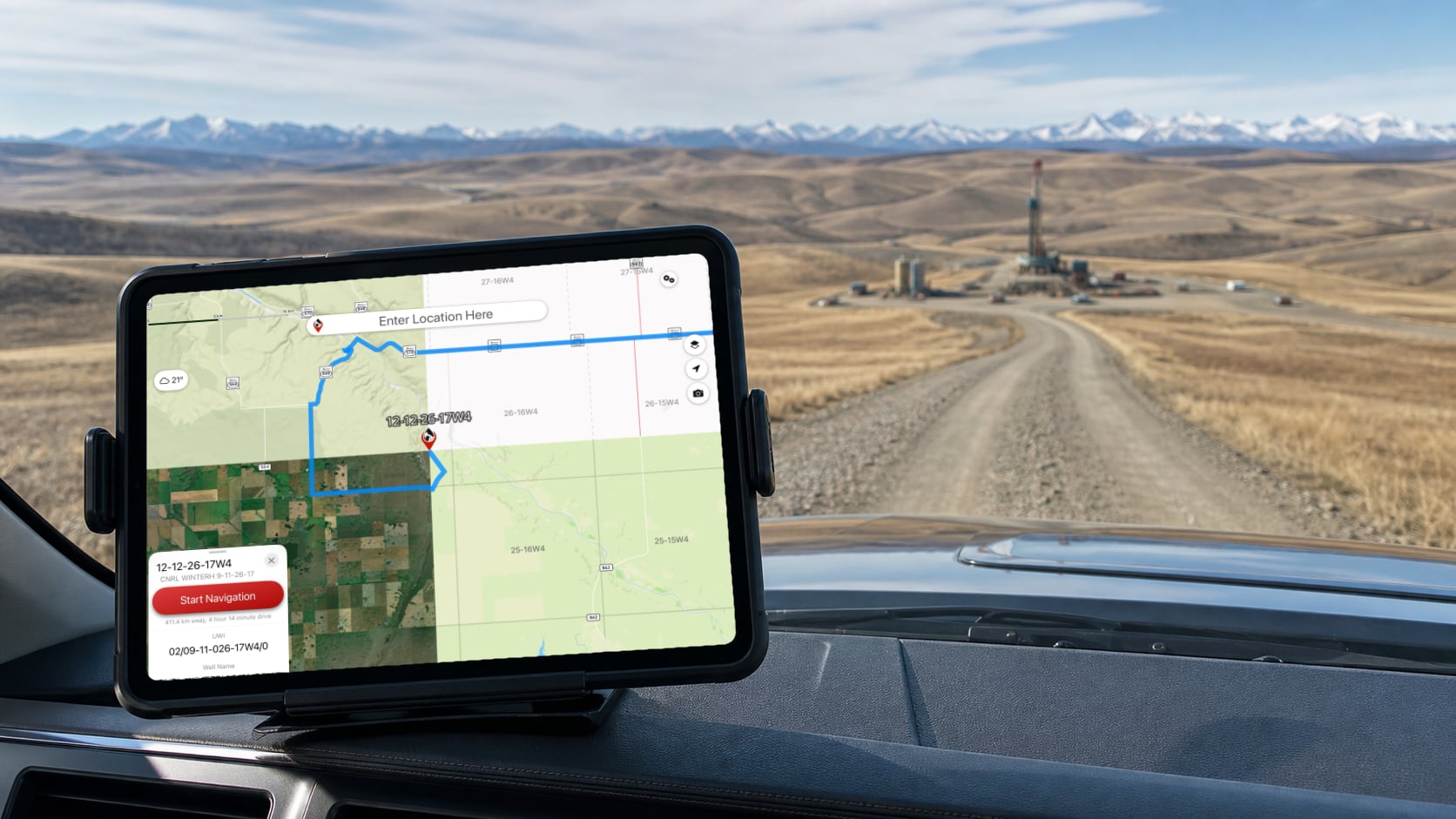
Sometimes the biggest improvement to a field workflow is not a big, flashy feature. It is the small control you use over and over again.
Map layers are a good example.
On paper, switching from a road map to satellite or terrain view sounds simple. In the field, it can make the difference between trusting a route blindly and understanding what is actually around the lease road, approach, river crossing, cutline, or wellsite.
OilTrails map layers are built around that practical reality. Different jobs need different map context, and no single map view answers every question.
Why Map Layers Matter In Oilfield Navigation
Remote oilfield navigation is not the same as city navigation.
In town, a road map usually tells most of the story. Roads are named, addresses are structured, intersections are obvious, and alternate routes are often nearby.
In the oilfield, the important details are often more complicated:
- A lease road may not appear clearly on a basic road map.
- A route may take you close to a destination but not to the correct approach.
- A river, coulee, gate, or dead-end access can change the practical route.
- A Legal Subdivision (LSD) may make sense on a land grid but still be hard to visualize from the road.
- Weather and road conditions can make visual route checking more important.
That is why OilTrails supports multiple map views and grid overlays inside the broader OilTrails navigation platform. The goal is not just to draw a route. It is to help users understand the location before they commit to driving it.
Road Maps: Start With The Route
Road maps are still the natural starting point for most navigation.
They help answer the first question:
What is the likely driving route?
Use the road map when you want to:
- Find the general route to a lease or wellsite.
- Check highway, range road, township road, and local access patterns.
- Understand the shape of a trip before looking at more detailed map context.
- Share or review a route with another user.
For many locations, the road map gives you the fastest overview. But in remote areas, it should not be the only view you check.
If a road is missing from the map, if the route looks suspicious, or if the location appears near a river, cutline, lease boundary, or undeveloped area, switch layers before you go.
Satellite View: Confirm What The Ground Looks Like
Satellite view is one of the most useful tools for oilfield route checking.
It helps answer:
What is actually visible on the ground?
Satellite imagery can help users spot:
- Lease roads and approaches.
- Well pads and facility yards.
- Tree lines, rivers, dugouts, and coulees.
- Road bends and access points.
- Obvious mismatches between a mapped route and visible ground conditions.
We have covered this habit before in Checking Your Route With Satellite, and it remains one of the most important field-navigation habits in OilTrails.
Turn-by-turn navigation is useful, but it is still worth checking the route visually when the destination is remote. If a lease road does not exist in the routing data, a navigation system may route to the closest mapped road instead of the most practical access point. Satellite view gives you another way to sanity-check the route before you are committed.
Terrain View: Understand The Shape Of The Land
Terrain view adds context that road and satellite maps may not make obvious at a glance.
It helps answer:
What kind of ground am I dealing with?
Terrain context is useful when you want to understand:
- Hills, valleys, coulees, and drainage patterns.
- Why a route bends around certain areas.
- Whether a straight-looking approach may be impractical.
- How landscape features relate to lease access.
This is especially useful in foothills, river valleys, and areas where the road network follows the land more than a simple grid.
Terrain view does not replace local judgment or live road information, but it gives useful planning context before a trip starts.
DLS And NTS Grid Overlays: Connect The Map To Oilfield Language
Oilfield locations in Western Canada are still commonly communicated with LSD, DLS, and NTS references. That language is practical for land and wellsite work, but it can be hard to visualize on a normal consumer map.
Grid overlays help answer:
Where does this location sit in the land system?
OilTrails grid overlays help users connect map locations with the legal land descriptions they already use in the field. Instead of treating an LSD as a separate lookup result, the grid can be viewed directly with the surrounding map context.
That is useful when:
- Checking whether a destination appears in the expected section or township.
- Comparing a route against a DLS-based instruction.
- Reviewing nearby LSDs or land boundaries.
- Planning work across multiple locations in the same area.
- Helping newer workers understand how the land grid relates to the actual road network.
For a deeper explanation of the land system itself, read Understanding Western Canada’s DLS Grid System.
A Simple Layer-Checking Workflow
When planning a route to a remote location, a simple habit can prevent a lot of confusion:
- Start with the road map to understand the basic route.
- Switch to satellite view to confirm visible access and site context.
- Use terrain view if the area has hills, valleys, water crossings, or uncertain approaches.
- Turn on DLS or NTS grid overlays when the location is being verified against oilfield land descriptions.
- Review the route before starting navigation, especially if the destination is remote or the road network looks incomplete.
This does not need to take long. The point is not to over-plan every trip. The point is to catch obvious problems before they become field problems.
Map Layers Work Best With The Rest Of OilTrails
Map layers become even more useful when they are used alongside other OilTrails planning tools.
For example:
- Use the OilTrails Web App to plan a route on a larger screen.
- Check satellite or terrain context before sending a route to the field.
- Use grid overlays when reviewing LSD or NTS-based instructions.
- Pair map-layer checks with lease-specific weather and wellsite context where available.
- Save important locations or group related work into Collections for later.
OilTrails has grown beyond a simple lease locator. Map layers are part of a larger workflow: find the location, understand the context, plan the route, and hand it off clearly.
A Small Control With A Big Field Impact
Changing map layers may seem like a small feature. For users driving remote lease roads, it is often one of the most important quality-of-life tools in the app.
Road maps help you start the route.
Satellite view helps you check what is really on the ground.
Terrain view helps you understand the land.
DLS and NTS overlays help connect modern maps to the oilfield location systems Western Canada still uses every day.
Used together, these layers help OilTrails users make better decisions before they head down the road.
Explore OilTrails mapping and route planning at oiltrails.ca/navigation.